Everyday workflows · PRACTICAL GUIDE
iPhone photos on Windows: keep originals and make compatible copies
A transferred photo can be present on Windows even when your current app cannot open its format. Solve compatibility separately from transfer. Keep the original media and create a compatible copy only when the destination needs it.
Start with the safe checks ↓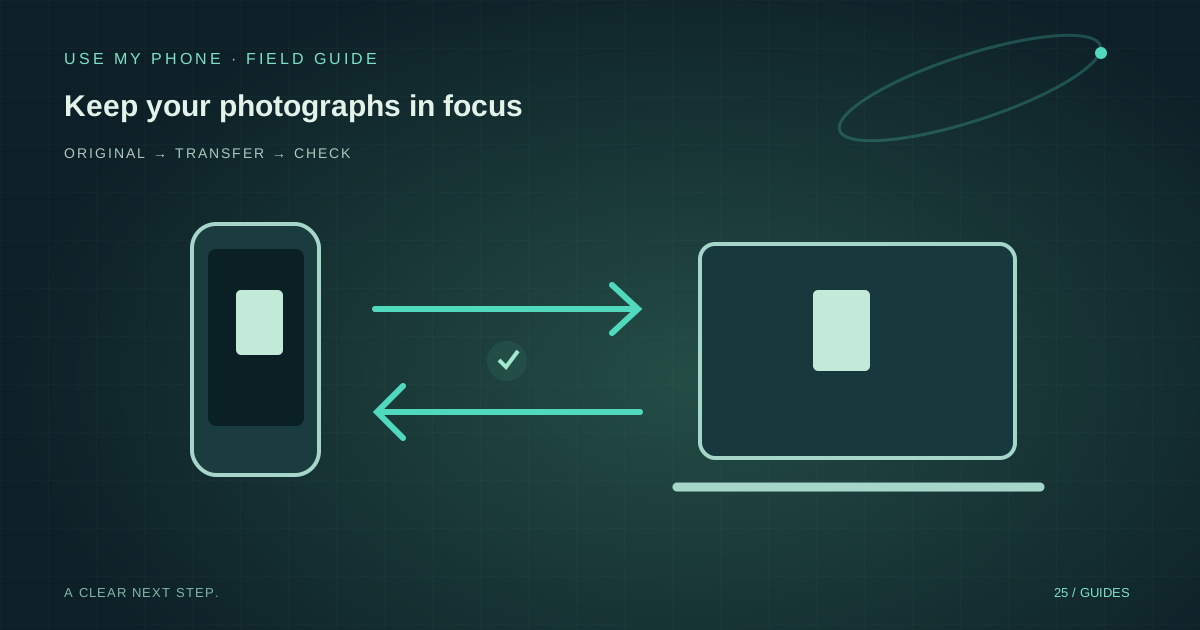
THE QUICK ANSWER
Here’s the short version.
Import or download the original media through a trusted route, verify it and retain the source. HEIF/HEIC photos and HEVC videos may need compatible apps or codecs on Windows. Make JPEG or other compatible copies separately instead of replacing your archive.
LET’S DO THIS
Work through these checks
Decide whether you need originals or shareable copies
For archiving, keep original files and associated media you need. For sending one image to a service, a compatible export may be sufficient. A screenshot of the photo is not the same as the original photograph.
Use an appropriate import route
For USB import, use a data-capable cable, unlock the iPhone and follow trust prompts for your own computer. Open Windows Photos → Import and choose the connected device. Follow Apple’s guidance if originals are stored in iCloud rather than locally.
Check the transferred file
Confirm the expected photo or video exists and examine its file type. If it will not open, distinguish an unsupported HEIF/HEVC format from an incomplete transfer. Do not rename .heic to .jpg and call that conversion.
Choose trusted compatibility support
Use supported applications or official format extensions where needed; costs and availability can vary. Alternatively, export a compatible copy from an application that opens the original. Keep the two versions clearly named.
Verify before removing anything
Open representative photographs and videos, compare the items you intended to keep and check the separate backup. Do not delete phone media based only on a folder containing unfamiliar filenames or thumbnails.
Transfer quality and format compatibility are separate
HEIF and HEVC are efficient media formats, not signs that a file is broken. An application without the required support may show an error even though the transfer preserved the file correctly. Start by checking the format before repeating the whole import.
Conversely, a JPEG opening successfully does not prove it is the original-sized photograph. Some sharing routes produce an export or reduced copy. If resolution or metadata matters, inspect the resulting file and compare it with your source rather than relying on its appearance as a small thumbnail.
Keep an archive and a sharing version
A useful folder pattern is one location for originals and another for copies intended for a particular task. You can send a compatible image while retaining the source for later editing. Avoid repeatedly converting and replacing the same file as it passes through different apps.
Live Photos and other richer media can contain more than one component or depend on the export route. Decide whether you want the still image, motion or both, then verify the delivered result. A still image is a valid sharing choice, but it should not silently become your only archive.
Browser transfers need an output check too
Use My Phone File Transfer sends the files you select between connected browser pages. What the phone’s picker provides may depend on the source app and its export settings. Check the received file rather than assuming every picker exposes the original asset unchanged.
The current standard per-file limits are 200 MB on Free, 2 GB on Pro and 5 GB on Studio, with practical browser-memory limits also possible. For a whole photo library, use a supported bulk import or backup route instead of stretching a one-off browser session into an archive system.
THE THINGS PEOPLE ASK
Common questions
Can I rename HEIC to JPG?
No. Changing the filename extension does not convert the image data. Use a supported viewer or conversion/export workflow.
Is a screenshot a full-quality photo backup?
No. It captures a display view, not necessarily the original media, resolution or associated information.
Should I delete the phone photos after import?
Only after verifying the imported content and your separate backup. A folder of filenames alone is not enough evidence.
Sources & further help
Check the documentation for your version. Menus and available options can change.
YOUR NEXT MOVE
Still stuck? Narrow it down.
Note the exact error, what changed before it started, and which checks worked. That makes the next support conversation much more useful.