Phone tools · PRACTICAL GUIDE
How to transfer files between a phone and computer without a cable
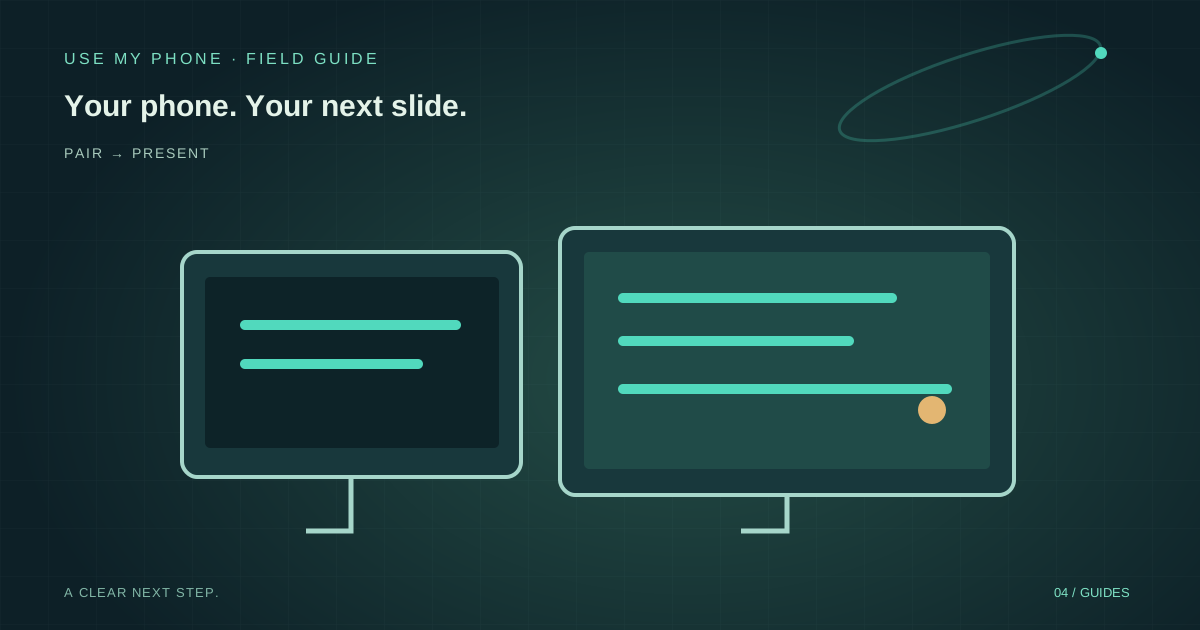
Use My Phone transfers selected files between paired browser pages on a phone and computer. It works in both directions without a cloud-drive account or cable. Standard per-file limits are 200 MB on Free, 2 GB on Pro and 5 GB on Studio; available device memory and browser behaviour can impose lower practical limits.
Open Send Files →
THE QUICK ANSWER
Here’s the short version.
Use My Phone transfers selected files between paired browser pages on a phone and computer. It works in both directions without a cloud-drive account or cable. Standard per-file limits are 200 MB on Free, 2 GB on Pro and 5 GB on Studio; available device memory and browser behaviour can impose lower practical limits.
LET’S DO THIS
Step-by-step setup
Pair the receiving computer and phone
Open Send Files on the computer. Scan its QR with the phone and open the pairing page. Keep both browser tabs open. Check the connection status before choosing a large file; a displayed pairing code alone does not mean the devices have connected.
Choose the direction and the actual file
To send from the computer, use the file picker or drag files onto the transfer area. To send from the phone, select files from the phone-side picker. Picker options depend on the phone: an item in an online library may need downloading locally before it can be sent.
Watch the transfer rather than navigating away
Keep the phone awake and the receiving page active until the transfer finishes. Use cancellation controls if you selected the wrong file. Do not assume that a preview or a started progress bar means the complete file is already saved on the other device.
Download and verify the received copy
Download the received file on the destination device. Open it and check its name, size and contents before deleting the original. For photographs captured through Photos to PC, you can download individual images or package the computer gallery as a ZIP.
iPhone to Windows, Android to Mac and other combinations
The browser connection avoids dependence on a matching operating-system ecosystem. You can pair a phone with a computer that runs a compatible modern browser. No iTunes or dedicated phone app is needed for this workflow.
That does not make every file available to the browser. Mobile operating systems decide what the file picker can access and where a downloaded item is saved. If a file is missing from the picker, first locate or export it using its source application. If a download seems missing, check the browser’s downloads and your phone’s Files application.
Why the same Wi-Fi can help
Both devices need an internet connection to establish the session. A direct device-to-device path is preferred, and placing them on the same trusted Wi-Fi is a useful first troubleshooting step. It is not a guarantee: some guest networks deliberately isolate devices.
If the session stays waiting, keep both pages open and test a different network. A VPN, corporate firewall or guest-network restriction can interfere with peer connections. An encrypted relay may be used when needed. Do not disable security protections broadly just to complete one transfer.
Large files need more than a generous plan limit
The advertised limit is a per-file entitlement, not a promise that every phone can handle that file size. The browser receives data in memory, and packaging multiple files as a ZIP also consumes memory. A low-memory phone may struggle with a file substantially smaller than its plan allowance.
Start with a smaller file when testing a new device pair. For a very large recording, a cable or an established large-file storage service may be more appropriate. Save received files individually if building a ZIP fails, and keep enough free storage on the destination for the final download.
Interrupted transfers, privacy and safe handling
If a connection drops, wait for the page to reconnect and check whether the transfer actually completed. A cancelled or failed transfer may require selecting and sending the file again; do not rely on an automatic cross-session resume. Keep the source copy until you have a verified destination copy.
Transfer content is encrypted between devices. A relay, when used, forwards encrypted data rather than providing a permanent cloud drive. Files left in the browser session are not durable storage. Use only devices you trust, keep pairing details private and apply normal caution to received files: transferring a file does not establish that it is safe to open.
THE THINGS PEOPLE ASK
Common questions
Do I need a cloud account?
No cloud-drive account is required for the file-transfer workflow. A Free Use My Phone account may be requested after the initial trial session under the site’s account policy.
Can I send files from the computer back to the phone?
Yes. File transfer works in both directions while the device pair remains connected.
Can I close the page after the progress bar starts?
No. Keep both pages open until completion, download the received file and verify it before closing the session or deleting the original.
YOUR NEXT MOVE
Put the guide to work.
Choose the tool for your next step. Review the result and save the copy you need.