Phone tools · PRACTICAL GUIDE
How to use your phone as a PDF presentation remote
Use My Phone Presentation Remote displays a PDF deck in the computer browser and gives your paired phone slide navigation, a pointer, timing and notes. Export a PowerPoint, Keynote or Google Slides deck to PDF first. This tool does not directly drive another application’s presentation window, and a PDF cannot preserve slide animations or embedded video.
Open Presentation Remote →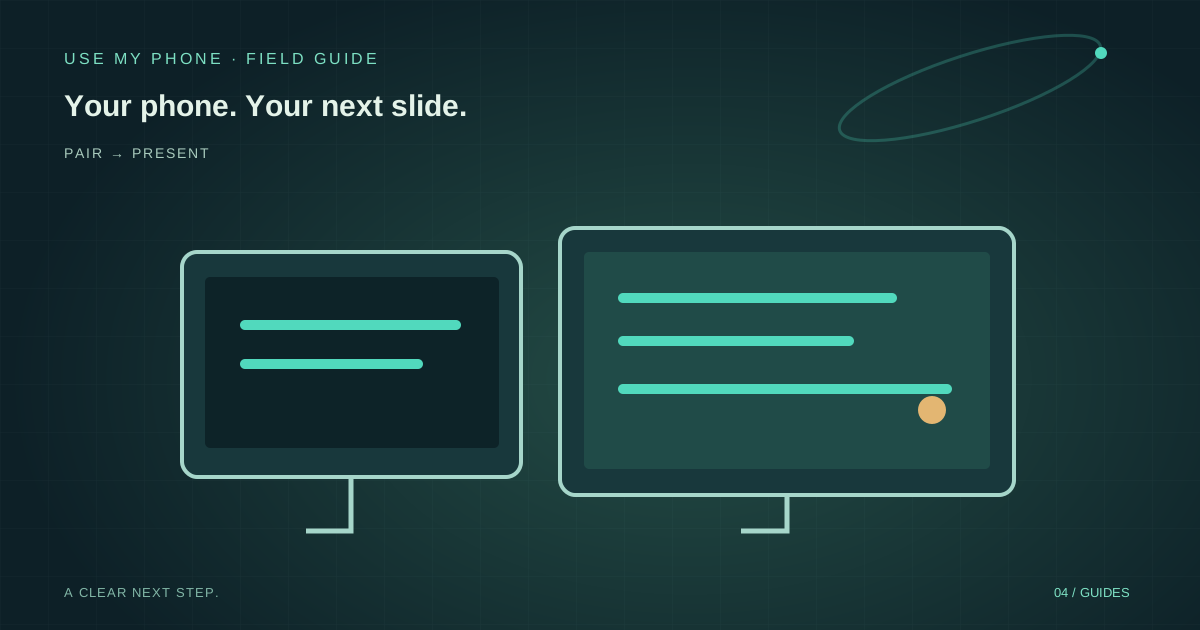
THE QUICK ANSWER
Here’s the short version.
Use My Phone Presentation Remote displays a PDF deck in the computer browser and gives your paired phone slide navigation, a pointer, timing and notes. Export a PowerPoint, Keynote or Google Slides deck to PDF first. This tool does not directly drive another application’s presentation window, and a PDF cannot preserve slide animations or embedded video.
LET’S DO THIS
Step-by-step setup
Prepare a PDF of the slides
Export or print your presentation to PDF using its source application. Open the exported file yourself and check page order, fonts, diagrams and cropped content. Slides that depend on animation or video need a static alternative, or a different presenting workflow.
Pair before the audience arrives
Open Presentation Remote on the computer connected to the projector or display. Scan the QR with your phone and verify connection. Test this on the venue network in advance; a guest network can restrict device-to-device connections even when ordinary websites load.
Load the deck and enter useful notes
Choose Open a PDF on the computer. Add notes for the relevant slides in the tool’s Speaker notes panel; these notes are sent to the phone. Original PowerPoint or Google Slides presenter notes are not automatically imported simply by exporting slide pages.
Present, rehearse and finish cleanly
Use Present to show the deck, then test next, previous, blank screen and pointer controls from the phone. Set the timer target if useful. Confirm what the audience display actually shows. At the end, exit fullscreen and close the session, rather than leaving a paired controller active.
Why a PDF is the supported route
A normal website cannot send operating-system keystrokes to PowerPoint or control another browser tab’s slide deck. Presentation Remote instead owns the slide viewer inside its page, so the paired phone can navigate that viewer directly.
The separate Wireless Touchpad tool can provide system-wide input through a Windows helper, but it is a different interaction and setup. Do not promise yourself a native presentation-clicker integration that this PDF remote does not provide. Choose the workflow that matches whether you need static slides or the original presentation application.
Keep the audience view separate from your notes
Notes entered into this tool are associated with the displayed slide and available on the phone. Put the slide viewer into presentation fullscreen and inspect the actual projected output before speaking. If you share a screen during an online event, verify the shared area through the meeting application’s controls too.
Use short prompts rather than a full script when the phone is also your controller. Practice locating next, previous and blank controls without looking at the audience screen. The pointer helps indicate a detail in the displayed PDF; it is not the computer’s operating-system mouse pointer.
Connection and screen-awake troubleshooting
The phone attempts to keep its screen awake while the remote is open, but browser and operating-system support varies. Test the actual phone you will use. Keep it charged, avoid switching to another application during a slide change and check its connection status if controls stop responding.
Keep the computer’s browser tab active. If the venue network prevents pairing, try an approved alternative such as a trusted hotspot and test both devices on it. Have a simple backup: the computer keyboard and the local PDF file. The remote is a convenience, not a reason to remove your only fallback.
Rehearse the final deck, not just a sample slide
A PDF page can render differently from its original slide because of font embedding, export choices or page sizing. Check the smallest text, edge content and slides with several images. Walk through the full deck once on the target display and make sure each page can be understood at audience distance.
The deck is rendered in your browser rather than becoming a public document library. Still, protect the paired phone and session code: someone controlling the phone controls the presentation. Audience question sharing is a separate link for collecting questions; it is not the controller pairing link. Share only the link appropriate to the intended role.
THE THINGS PEOPLE ASK
Common questions
Can my phone control PowerPoint directly?
Not through this PDF presentation remote. Export the slides to PDF and present them in this tool, or consider the separate Windows-helper touchpad workflow for system-wide input.
Do PDF slides keep animations and videos?
No. They are static pages. Test your exported deck and replace animation-dependent explanations with suitable static slides.
Will it import my original speaker notes?
No automatic import is provided by loading the slide PDF. Enter the notes you need in this tool’s per-slide Speaker notes panel.
YOUR NEXT MOVE
Put the guide to work.
Choose the tool for your next step. Review the result and save the copy you need.