Phone tools · PRACTICAL GUIDE
How to scan paper documents to your computer with a phone
The Document Camera tool turns a paired phone into an overhead view and page scanner for your computer. Capture and download individual pages and read text on Free. Pro and Studio add combined PDF export. The current OCR engine runs in your computer browser and is trained for English; every recognised result should be checked.
Open Document Camera →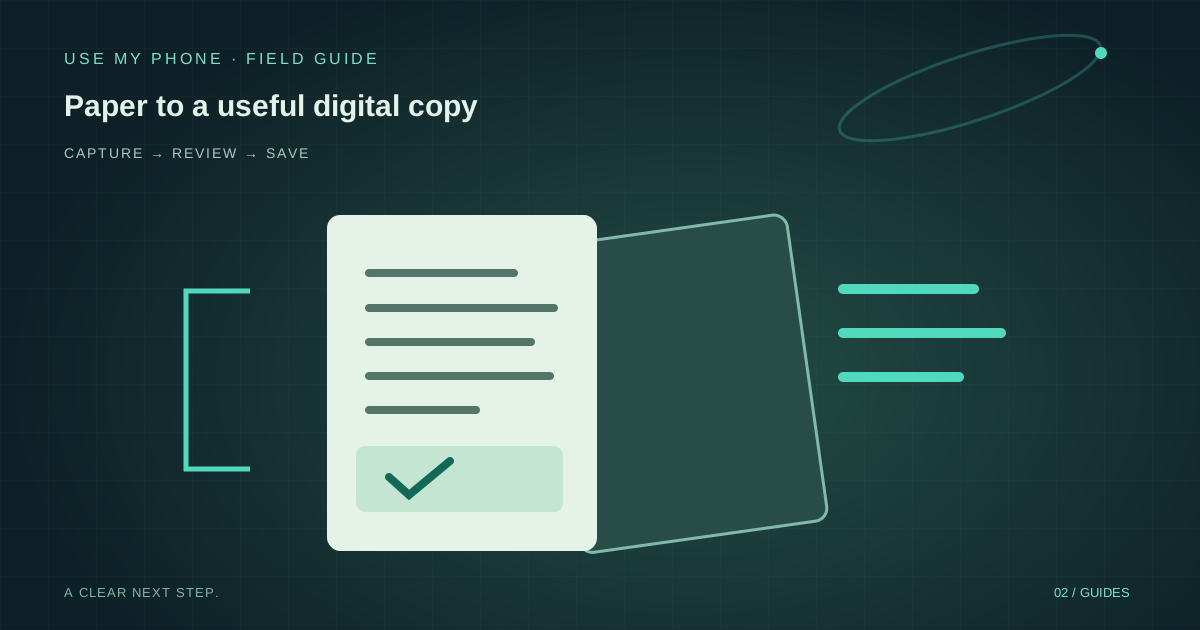
THE QUICK ANSWER
Here’s the short version.
The Document Camera tool turns a paired phone into an overhead view and page scanner for your computer. Capture and download individual pages and read text on Free. Pro and Studio add combined PDF export. The current OCR engine runs in your computer browser and is trained for English; every recognised result should be checked.
LET’S DO THIS
Step-by-step setup
Connect and position the camera
Open Document Camera on your computer, scan its QR with your phone and approve camera permission. Hold the phone above the paper, preferably on a stand. Keep the entire page inside the preview and avoid casting a shadow across the text.
Make the page readable before capturing
Flatten folded paper and use even light from the sides if overhead light creates glare. Rotate the view if needed. Text enhancement can improve contrast, but it cannot recover writing hidden by reflections or a blurred photograph.
Capture and review the page corners
Use Capture page on the computer. If crop review is enabled, adjust the four corners to the actual edges of the sheet. Confirm the result or retake it. Check that the crop has not removed a date, footnote, signature or information near the edge.
Check text and choose an export
Wait for text recognition to finish, then compare important numbers and names with the image. Download pages individually on Free, or use Save as PDF with Pro or Studio to combine them. Save your files before closing the session; a captured-page tray is not permanent document storage.
A document camera is also a live visualiser
You do not have to scan a document to show it. A live overhead view is useful for handwriting, demonstrations and diagrams. Freeze the view when you need the finished example to remain visible while moving the paper. For a projector, put the browser’s document view into fullscreen.
To share a demonstration in a video call, share the relevant browser view using your meeting software. Use My Phone does not itself become a native video-call camera. Keep unrelated documents and browser windows out of the shared area.
What local OCR can and cannot do
Text recognition processes the page in your computer browser. The engine and English language data are served by Use My Phone; the page image is not uploaded for ordinary OCR. The first recognition can take longer while these resources load. Leave the tab open and allow the progress state to finish.
Printed, sharply focused English text is the best starting point. Handwriting, mixed-language pages, faint receipts and complex tables may be inaccurate. OCR is not a verified transcription. Compare account numbers, totals, dates and identifiers before reusing them; keep the original image alongside corrected text.
Images, searchable PDFs and optional AI
Free page downloads are images. Pro and Studio PDF export combines captures in their captured order, fitting each image on an A4 page. Where text recognition succeeded, the PDF includes an invisible text layer for search and copying. It is not an editable recreation of the original layout.
The text layer has character-encoding limitations, particularly for non-Latin scripts. Check a downloaded PDF by searching a phrase you can see in its image. Optional AI capture assistance is a separate action: review the extracted text and approve what is sent before requesting table organisation. It does not replace the local scan or make extracted facts automatically correct.
Recover from a poor scan without losing the task
If a page is blurred, retake it rather than trying stronger contrast. If text recognition fails but the image is readable, save the image and retry recognition when the browser has capacity. Multiple large pages can take appreciable processing time on an older computer.
If combined PDF export fails, individual page downloads are the fallback. Verify the page count and order in the finished file, then save a separate copy where you keep your records. For drawing over a captured page, use the Annotation Pad; its exported result is a PNG, not a signed PDF envelope.
THE THINGS PEOPLE ASK
Common questions
Can I scan pages for free?
Yes. Capturing page images and local text recognition are available on Free. Combining captured pages into a PDF is a Pro and Studio feature under the standard plans.
Are ordinary OCR scans sent to an AI service?
No. Ordinary OCR runs in your browser. Optional AI assistance is separately disclosed and requires approval of the selected text.
Will the PDF look exactly like my original document?
It contains the captured page images, cropped and processed as you approved them. Check the image and page order; it is not a reconstruction of the source document’s editable formatting.
YOUR NEXT MOVE
Put the guide to work.
Choose the tool for your next step. Review the result and save the copy you need.