Phone tools · PRACTICAL GUIDE
How to view and record your phone camera on a computer
Use My Phone connects a phone camera to a computer browser through a QR code or fallback pairing code. You can watch the preview, capture photographs and record video without a phone app or cable. It does not currently make the phone appear as a selectable webcam in Zoom, Teams or other desktop applications.
Open Phone as Webcam →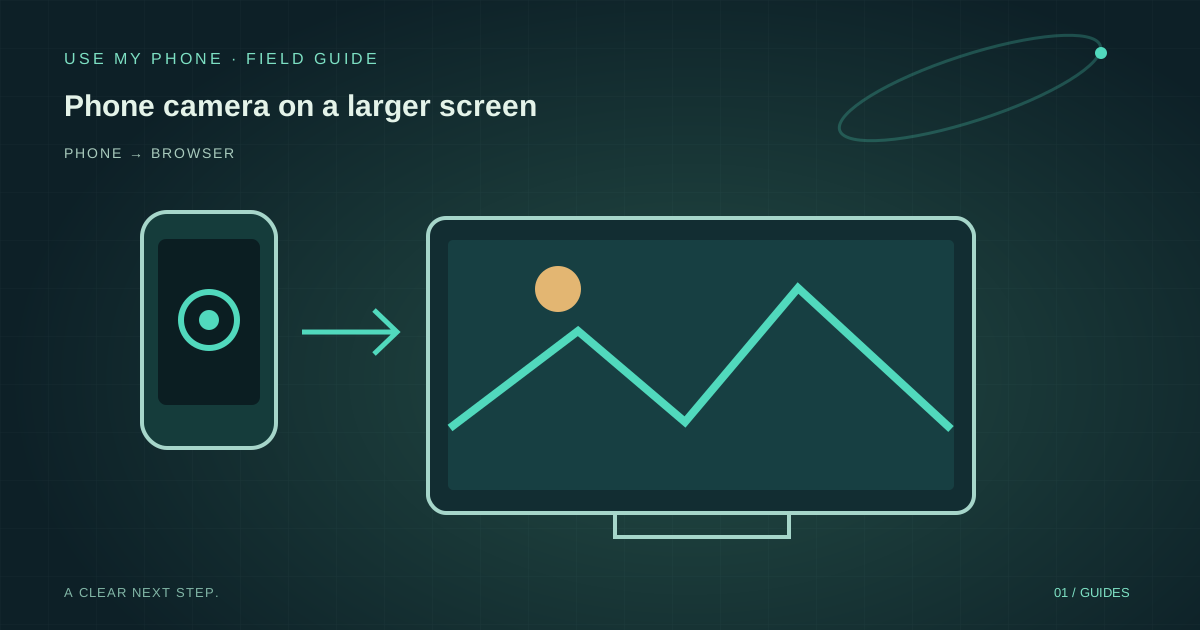
THE QUICK ANSWER
Here’s the short version.
Use My Phone connects a phone camera to a computer browser through a QR code or fallback pairing code. You can watch the preview, capture photographs and record video without a phone app or cable. It does not currently make the phone appear as a selectable webcam in Zoom, Teams or other desktop applications.
LET’S DO THIS
Step-by-step setup
Open the camera tool on the computer
Open Phone as Webcam or Live Phone Camera on the computer that will receive the picture. Keep that tab open. Start with the devices on the same trusted Wi-Fi where possible, although the connection still uses the internet to establish the session.
Pair the phone with the displayed code
Scan the QR with the phone camera and open its link in a normal browser. If scanning is inconvenient, use the six-digit fallback shown on the computer. Treat the pairing code as private: it connects a device to this session, not to a public broadcast.
Allow camera access and check the live view
Approve the camera request on your phone. Select the front or rear lens as needed, then confirm that the computer shows moving video rather than a still frame. Lens switching, flash and zoom options depend on your phone and browser.
Frame, capture and save
Place the phone on a stable support and light the subject from the front. Capture a photo or start recording from the computer. Stop the recording and download the file before ending the session. Check the saved result, particularly the first time you use a new browser.
Browser preview versus a video-call webcam
The word webcam can describe two different jobs. This tool displays your phone camera inside the Use My Phone page. It can be useful for demonstrations, framing a recording, inspecting an object or showing a desk on a larger screen. It does not install a virtual-camera driver.
To show this page during a meeting, use the meeting application’s own screen-sharing controls where appropriate. That is screen sharing, not a native camera integration; test readability and privacy before the meeting. Do not expect the phone to appear in another application’s camera dropdown.
If camera permission was denied
Check the phone browser’s site permissions for usemyphone.com, allow the camera, then reload the phone page. Your operating system may also restrict camera access for that browser. An in-app browser opened by another application can behave differently: reopen the link in your normal browser.
Close other applications using the camera if the stream will not start. Permission must be granted on the phone even if the computer already has permission to use its own webcam. You should never need to disable browser security or install an unknown extension.
If the devices stay waiting or video freezes
Keep both screens awake and their browser pages in the foreground while diagnosing. A corporate network, VPN or firewall may block the direct connection. Try a different trusted Wi-Fi or mobile-data connection to distinguish a network restriction from a camera-permission problem.
A relay may be used when a direct connection is unavailable; relayed video can have reduced quality. Moving both devices onto the same reliable Wi-Fi can improve the route. If reconnecting does not restore moving video, end the old session and pair again rather than repeatedly pressing record.
Quality, limits and privacy
Standard Free includes up to 1080p video and ten-minute recordings. Pro and Studio allow higher quality, up to 4K where the hardware and browser support it, and longer recordings. The active plan and any temporary site-wide offer determine the controls available to you; higher settings do not overcome poor lighting or limited bandwidth.
Media is encrypted between the devices, with an encrypted relay if needed. Recordings save on your computer rather than forming a cloud video library. Close the session when finished and keep your downloaded files somewhere appropriate for their contents.
THE THINGS PEOPLE ASK
Common questions
Can I select the phone camera in Zoom or Teams?
Not as a native webcam device through this tool. The camera is displayed in the Use My Phone browser page; showing that page through a meeting’s screen-share feature is a separate workflow.
Do I install anything on the phone?
No. Camera viewing and recording use your phone browser. The Windows helper belongs to the separate wireless-touchpad tool, not this camera workflow.
Why is the saved recording format different on another computer?
Recording formats depend on the receiving browser’s MediaRecorder support. Check that the downloaded file opens in your intended player or editing application.
YOUR NEXT MOVE
Put the guide to work.
Choose the tool for your next step. Review the result and save the copy you need.