Browser help · PRACTICAL GUIDE
Browser download failed? Use the error message to choose the next step
A failed download is not automatically a browser fault. It may be a full drive, expired access link, server problem or security block. Save the exact message and choose the next action from that evidence.
Start with the safe checks ↓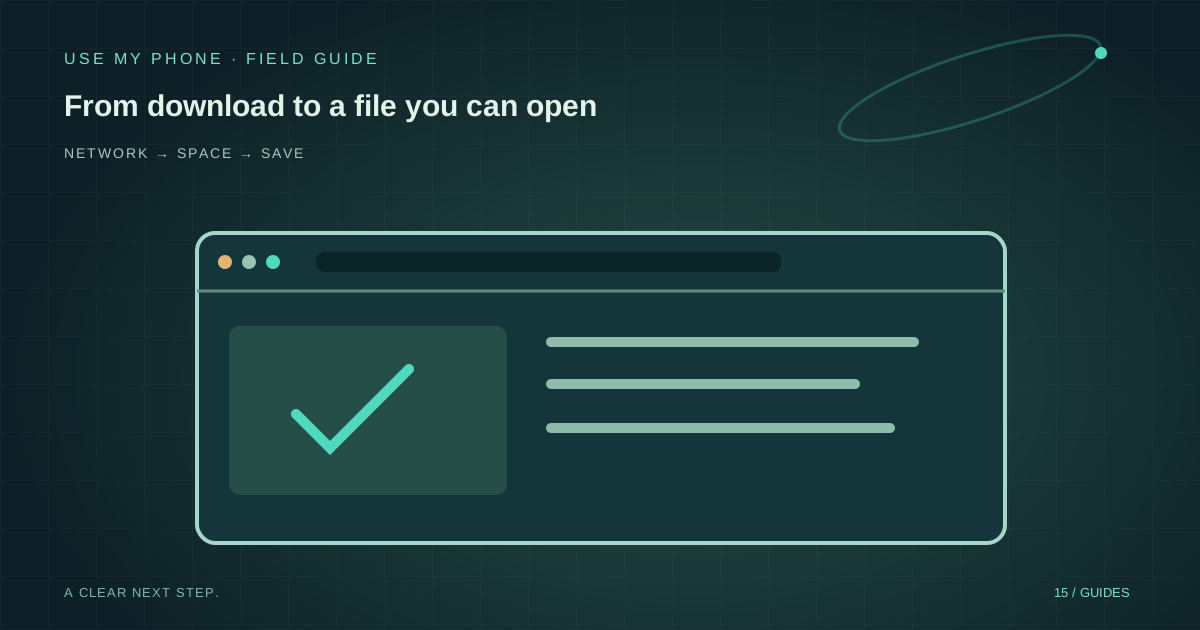
THE QUICK ANSWER
Here’s the short version.
Open the browser’s Downloads list and read the failure reason. Check storage and connectivity, refresh authorised access if needed and resume only where supported. Never bypass a malware warning merely to make the progress bar finish.
LET’S DO THIS
Work through these checks
Read the recorded failure
Open Downloads from the browser menu and inspect the item. Note whether it says blocked, forbidden, disk full, permissions or interrupted. Do not share the full download URL if it contains private access tokens.
Check the save destination
Confirm the drive has space and the selected folder is writable. Try an appropriate ordinary folder if the original path is unavailable. Do not save confidential material to a shared folder merely because it avoids an access error.
Check connectivity for interruptions
Compare a second trusted website. If the connection dropped, restore it and use the download’s Resume option when available. If resume fails, cancel the partial attempt before starting a fresh one.
Refresh legitimate access
For forbidden or authorisation errors, return to the original service, sign in if required and request a current link. Do not alter tokens or try to bypass another user’s permissions. A moved or missing file needs help from its owner.
Handle a security warning separately
For a blocked or virus-related message, review the browser or security tool’s explanation. Obtain the file from its genuine publisher or ask the sender to investigate. Do not switch off protection as the routine workaround.
One small download can narrow the problem
Try a harmless, small file from a trusted source. If it saves correctly to the same folder, the destination probably works. The original file may have a different access requirement, server fault or security concern. If even that test fails, storage, folder access or local browser behaviour deserves attention.
A successful small file is not proof that a multi-gigabyte transfer will complete. Large downloads expose weak connections and space limitations for longer. Keep the computer awake and avoid repeatedly creating new attempts while an old transfer still runs.
A finished progress bar is not a verified file
After a download completes, open it using the expected application and check the content you need. For a document, confirm the page count and the last page. For an archive, confirm it can be opened. A file can exist while being incomplete, corrupted or simply the wrong attachment.
Keep the sender’s original available until the received copy is checked. In a browser transfer session, downloading a received item is a separate step from receiving it into the page. Closing the tab too early can lose a result that was never saved to disk.
Report the useful details, not the private link
A support request can include the browser, time, error wording, approximate file size and whether a small comparison file works. That is usually enough for initial diagnosis. Remove email addresses, document names and signed query strings from screenshots if they are not needed.
When the server is returning an error, reinstalling the browser will not repair that server. When security blocks a suspicious file, “try a browser that ignores it” is not a safe troubleshooting plan. Follow the evidence instead of forcing every download through.
THE THINGS PEOPLE ASK
Common questions
Does “forbidden” mean my internet is broken?
Usually it indicates access is denied by the service. Return to the authorised source and check sign-in or link validity.
Should I disable antivirus for a download?
Not as a routine fix. Review the warning and contact the genuine publisher or sender instead of bypassing protection.
Sources & further help
Check the documentation for your version. Menus and available options can change.
YOUR NEXT MOVE
Still stuck? Narrow it down.
Note the exact error, what changed before it started, and which checks worked. That makes the next support conversation much more useful.