PC fixes · PRACTICAL GUIDE
Microphone not working in Windows 11? Test input before the meeting
“Nobody can hear me” is not always a faulty microphone. Your app may be listening to a disconnected headset, your cable may carry headphones only, or the recording may work while playback goes to the wrong speaker.
Start with the safe checks ↓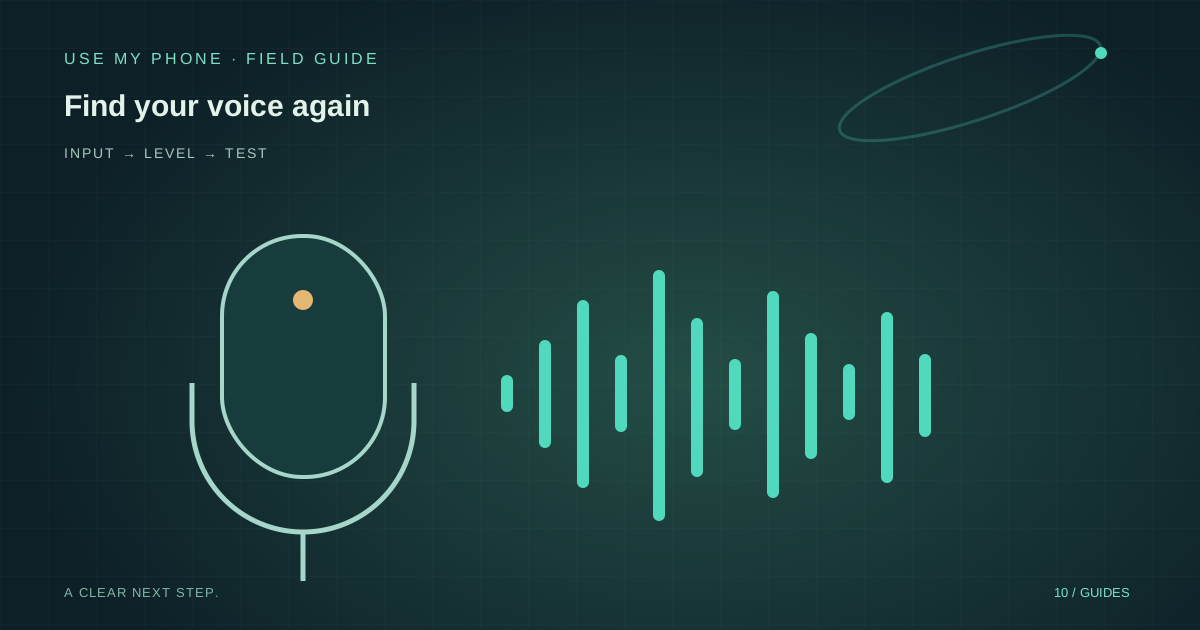
THE QUICK ANSWER
Here’s the short version.
Check physical mute, choose the intended device in Settings → System → Sound → Input and test it. If Windows receives your voice, select that same microphone in the app and review its permission. Use headphones for playback to avoid feedback.
LET’S DO THIS
Work through these checks
Check mute and the connection
Inspect the headset’s mute switch, any keyboard mute key and the plug. A headset may require the correct combined socket or adapter. For USB, try a direct port. For Bluetooth, confirm the accessory is connected to this computer.
Choose the actual input
Open Settings → System → Sound and inspect Input. Select your intended microphone rather than relying on a default device name. Speak normally near it and use the available microphone test to check whether Windows receives a signal.
Review access
Open Settings → Privacy & security → Microphone. Check access for the app you want to use, including desktop-app access for browsers. Review the website’s separate microphone permission if the task happens in a browser.
Test the target app
Select the same microphone in the meeting or recording app. Make a short test and listen back using the intended output. A moving input meter with silent playback deserves a speaker/output check, not automatically a microphone replacement.
Escalate with evidence
If Windows cannot receive input either, restart with work saved and use Microsoft’s microphone troubleshooting. Record the device model and whether it works on another compatible device. Use trusted manufacturer support for driver or hardware questions.
Separate input from output
Think of a recording as two journeys. Your voice travels into the computer through an input device; the saved sound travels out through an output device. Testing only the second journey can mislead you. Bluetooth headphones connected as an output do not prove their microphone is the selected input.
A useful test is ten seconds of normal speech followed by playback at a sensible volume. Check the input activity first, then check which speaker or headset receives the recording. Keep volume low initially: repeatedly increasing it can turn a routing problem into a sudden loud burst when the correct output is selected.
Improve a working microphone without buying one
Once input works, placement usually matters more than a dramatic level increase. Move closer to the intended speaker, away from fans and reflective corners, and make another short sample. Do not put the microphone directly in the path of breath or keyboard tapping.
For a phone used as a browser microphone, keep the phone stable and the page active. Use headphones on the computer if you monitor live audio, because sound from speakers can re-enter the microphone. Use My Phone’s Microphone tool receives audio inside its workspace; it is not a native microphone driver for unrelated apps.
Make a reproducible support note
Write down the input device name, physical connection and whether Windows’ test detects speech. Add whether the failure affects one app or all apps. That small report is enough to guide the next investigation without attaching private recordings.
If a work policy blocks access, ask the administrator to review the specific app. Avoid advice that turns off security or installs an unknown “audio repair” executable. The least risky fix is the one supported by the test you just performed.
THE THINGS PEOPLE ASK
Common questions
Why does my headset play sound but not record?
Its microphone may not be selected, may be muted or may require a compatible connection. Check Input separately from Output.
Can Use My Phone replace every app’s microphone?
No. Its phone audio is received in the browser workspace. It does not register a system-wide input device.
Sources & further help
Check the documentation for your version. Menus and available options can change.
YOUR NEXT MOVE
Still stuck? Narrow it down.
Note the exact error, what changed before it started, and which checks worked. That makes the next support conversation much more useful.