PC fixes · PRACTICAL GUIDE
No sound in Windows 11: check where the audio is going
A silent computer may be playing perfectly well to a monitor with no speakers or a headset in another room. Start with routing and volume, then compare applications. This is faster and safer than immediately reinstalling audio software.
Start with the safe checks ↓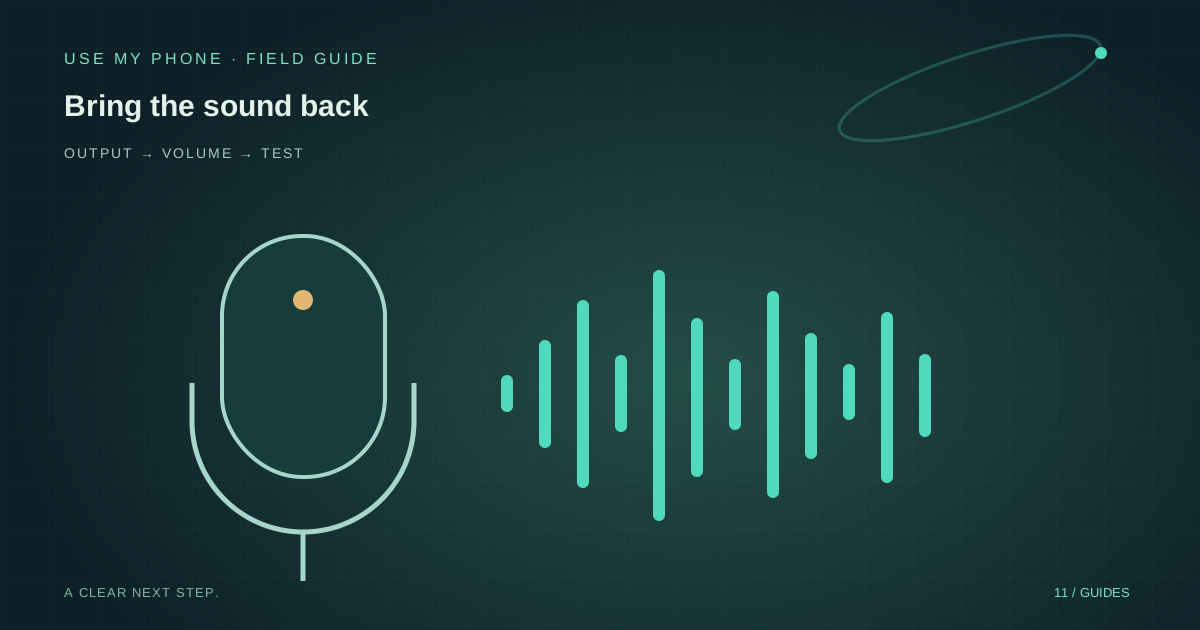
THE QUICK ANSWER
Here’s the short version.
Open Settings → System → Sound, select the intended output and check its volume. Inspect Volume mixer if only one app is silent. Disconnect unused headphones or HDMI outputs for a clear comparison, then try the Windows audio troubleshooter if needed.
LET’S DO THIS
Work through these checks
Check physical output
Confirm speakers are powered, headphones are connected and a hardware mute switch is not active. Start at a moderate volume. For a monitor, check whether it actually has speakers rather than assuming every HDMI display does.
Select the destination
In Settings → System → Sound, choose the desired Output device. Watch for a recently connected monitor, dock or Bluetooth headset. Test a short known audio clip after selecting the destination.
Inspect the individual app
Open Volume mixer from Sound settings. Check the failing app’s volume and output selection. In a browser, also inspect whether the tab or site is muted. Another working app makes a universal speaker failure less likely.
Compare a simpler connection
If Bluetooth is involved, try built-in speakers or a wired output temporarily. If those work, investigate the Bluetooth accessory and route rather than treating all Windows audio as broken.
Use supported troubleshooting
If multiple outputs and apps fail, save your work, restart and run the Windows audio troubleshooting available through Get Help. Check Windows Update and the manufacturer’s support guidance before changing drivers.
A small test that tells you a lot
Choose one familiar audio file or trusted clip and keep using it while you change the output. This avoids comparing a silent video, a muted meeting and a system alert as if they were the same test. Note which destination is selected when the sound works.
If the clip works in one app but not another, stop investigating the cable for now. Check that app’s mute, mixer and device choice. If headphones work but speakers do not, focus on the speaker connection or speaker device. The point is to reduce possibilities, not cycle through every possible Windows setting.
HDMI and Bluetooth can quietly change the route
Connecting a dock or screen adds another potential audio destination. Before a presentation, test sound after you connect the display, not only before. A live demonstration can look correct on the projector while the audio goes somewhere unexpected.
For Bluetooth accessories, distinguish “paired” from the currently active audio output. A remembered accessory is not necessarily carrying this app’s sound. If the headset is shared with a phone, examine which device is actually using it rather than repeatedly raising Windows volume.
Avoid fixes that erase the useful evidence
Deleting every audio device can remove the configuration you need to compare. Likewise, a driver bundle from an unknown website introduces more risk than a silent tab warrants. Keep a note of the current output name, app and behaviour before trying supported updates.
Seek manufacturer support when the failure affects the hardware across compatible devices, or when the port is visibly damaged. A repeatable report saves time: “Built-in speakers fail in two apps; USB headphones work” gives a much clearer starting point than “The laptop has no sound.”
THE THINGS PEOPLE ASK
Common questions
Why did sound stop when I connected a monitor?
Check whether Windows or the app changed its output to HDMI or the dock. Select the speaker you actually want and test again.
Should I turn volume all the way up?
No. Start moderately and check routing first. Sound may become unexpectedly loud when the correct output begins working.
Sources & further help
Check the documentation for your version. Menus and available options can change.
YOUR NEXT MOVE
Still stuck? Narrow it down.
Note the exact error, what changed before it started, and which checks worked. That makes the next support conversation much more useful.