PC fixes · PRACTICAL GUIDE
Second monitor not detected in Windows 11? Test the connection path
A powered monitor is not proof that a video signal reaches it. Check the screen’s input, the computer’s display mode and every adapter in between. USB-C shape alone does not guarantee video support.
Start with the safe checks ↓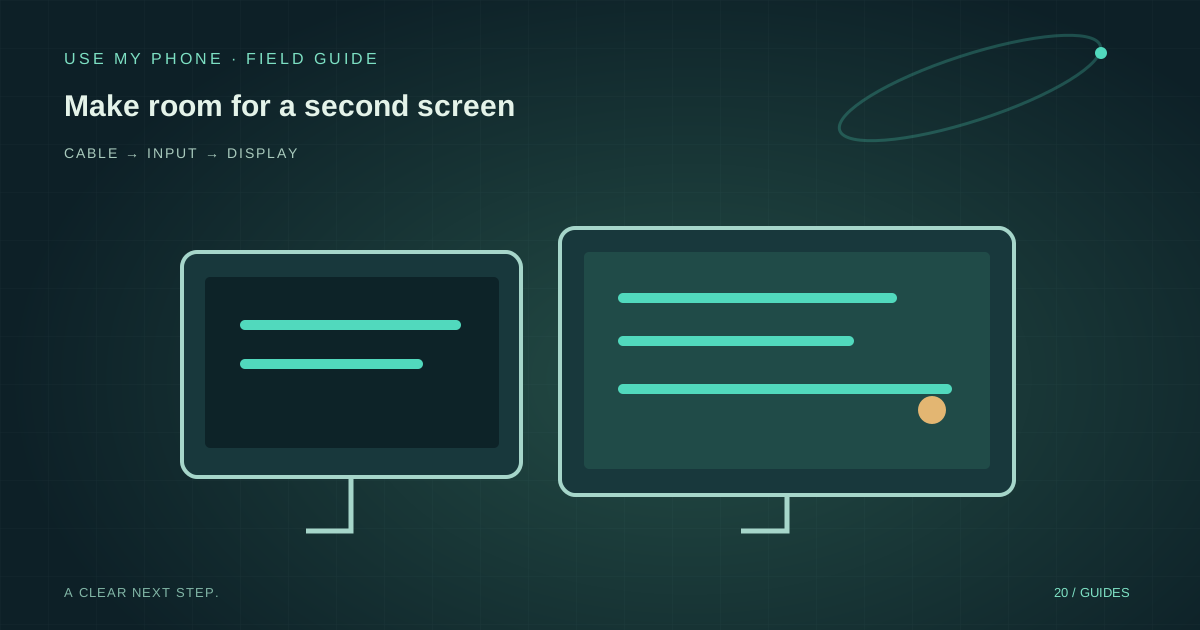
THE QUICK ANSWER
Here’s the short version.
Select the monitor’s correct input, press Windows + P and choose Extend or Duplicate. Reseat the video cable and test a direct connection without the dock. Confirm the port, cable and adapter actually support the intended display.
LET’S DO THIS
Work through these checks
Check the screen itself
Confirm power and use the monitor’s controls to choose the connected input, such as HDMI or DisplayPort. “No signal” is a useful message: it differs from a screen that cannot power on at all.
Choose a display mode
Press Windows + P and choose Extend for extra workspace or Duplicate for the same view. In Settings → System → Display, inspect the detected screens and use the available detection control if needed.
Simplify the cable path
Reseat the cable and, when possible, connect the monitor directly to the computer. If direct works but a dock does not, investigate the dock, its power supply and compatibility rather than changing the monitor.
Verify USB-C video support
Check the manufacturer’s specifications for the computer port, cable and adapter. A charging or data-only connection may not carry display output. Do not assume every USB-C cable has the same capabilities.
Compare and escalate
Test a known-good compatible cable or the monitor with another computer if available. Save your work before restarting or applying trusted updates. Record which combination succeeds before consulting manufacturer display troubleshooting.
Duplicate and Extend solve different jobs
For a workshop audience, Duplicate can make the laptop and projector show the same material. For editing, Extend creates extra desktop space. If a window disappears after changing mode, it may be on the other display rather than closed.
Use Identify in display settings to match the numbered screens to the physical arrangement. Put their positions in a sensible order so pointer movement crosses the expected edge. Check scaling for comfortable reading rather than forcing every display to the same tiny text size.
A splitter is not another independent screen
A basic splitter repeats one video signal. It does not necessarily create two independent desktops. Before buying adapters, confirm how many independent monitors the computer and dock support at the resolution you need.
Start by proving one external monitor works. Add the second only after that baseline is stable. If each works alone but not together, capacity or dock compatibility is a better lead than assuming both screens are faulty.
Prepare presentations after connecting the real screen
Connect the actual display before testing slides, text size and audio. A deck that looks good on a laptop may be difficult to read across a room. Check one dense slide and one diagram, and verify that the projector is showing only what you intend.
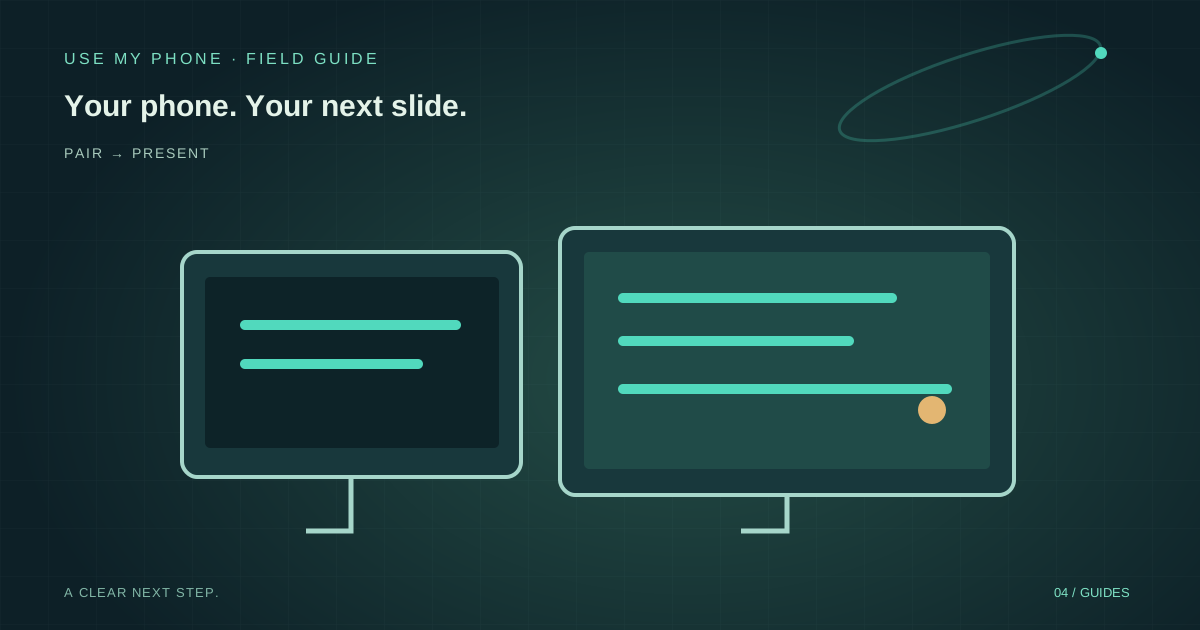
Use My Phone Presentation Remote operates a PDF deck in the computer browser. It does not directly control native PowerPoint or Google Slides. Export a suitable PDF beforehand, test the paired phone and keep a local way to advance the slides if the connection is interrupted.
THE THINGS PEOPLE ASK
Common questions
Why does a USB-C cable charge but not show the monitor?
The port or cable may not support the required video mode. Check all components against the manufacturer’s specifications.
Can a cheap splitter give me two separate desktops?
A basic splitter duplicates a signal. Independent displays require compatible computer and adapter capabilities.
Sources & further help
Check the documentation for your version. Menus and available options can change.
YOUR NEXT MOVE
Still stuck? Narrow it down.
Note the exact error, what changed before it started, and which checks worked. That makes the next support conversation much more useful.