PC fixes · PRACTICAL GUIDE
Bluetooth will not pair in Windows 11? Check discovery before drivers
A headset can be powered on without being discoverable. A mouse can be remembered by Windows but connected somewhere else. Separate those states first, and keep a working keyboard or pointer available before removing any pairing.
Start with the safe checks ↓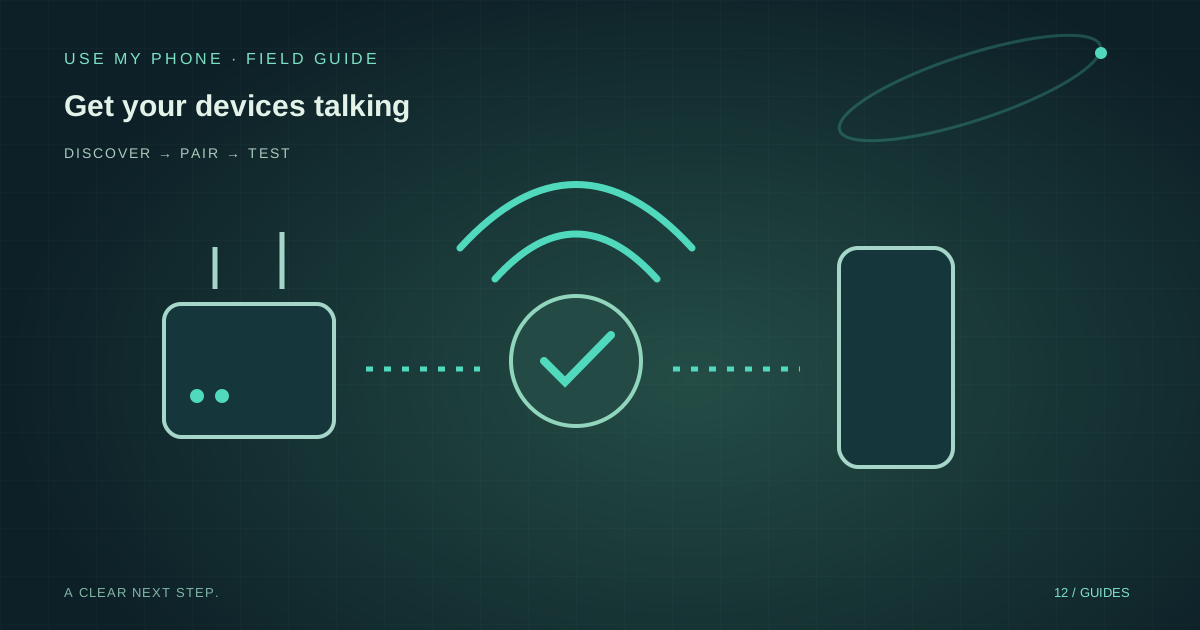
THE QUICK ANSWER
Here’s the short version.
Charge the accessory, put it in its manufacturer-defined pairing mode, enable Bluetooth in Windows and add it under Bluetooth & devices. If an existing pairing fails, remove only that accessory and pair again. Keep an alternative input method ready.
LET’S DO THIS
Work through these checks
Confirm the computer supports Bluetooth
Check the computer’s specifications if Bluetooth has never appeared. Not every desktop includes it. If you use a USB Bluetooth adapter, confirm it is connected and follow its manufacturer’s compatibility instructions.
Prepare the accessory
Charge it or fit fresh batteries, then activate pairing mode using its manual. Powering it on is not always enough. Keep it nearby and check whether another phone or computer is already using it.
Add it in Windows
Open Settings → Bluetooth & devices, enable Bluetooth and choose Add device → Bluetooth. Select the accessory whose identity you recognise. Follow any matching-code prompt; do not accept an unrelated nearby device.
Repair only the stale pairing
For a previously working device, remove its entry and pair it again if ordinary reconnection fails. Do not remove your only working keyboard or mouse without an alternative. Resetting the accessory itself may erase its other pairings.
Escalate beyond discovery
If Windows still cannot detect a known-compatible accessory, use the Bluetooth troubleshooter in Get Help. Check trusted updates and the computer manufacturer’s instructions. Record whether another device can discover the accessory.
Three states that sound similar but are not
Discoverable means another device can find the accessory for a new pairing. Paired means the devices remember one another. Connected means they have an active relationship now. A device can be paired while disconnected, so its appearance in a settings list is not proof that it is ready for this task.
For a headset, there is another practical check: is it the selected audio output? If Windows says connected but you hear nothing, use the sound guide rather than repeatedly deleting the pairing. For a keyboard, try typing into a plain local text field before blaming a particular website.
Use comparison to locate the fault
If another computer can discover the accessory but this one cannot, concentrate on this computer’s Bluetooth path. If nobody can discover it, revisit pairing mode and power. Keep the comparison simple; testing several adapters and changing several settings simultaneously obscures the result.
Move away from obvious interference and temporarily simplify the nearby hardware setup. Do not purchase a new adapter solely because one battery-powered device disappeared. Identify the failed link first: accessory, computer or connection conditions.
Bluetooth is not required for every phone task
People often start pairing a phone in Windows because they want to move one photograph or copy some text. That task does not necessarily need operating-system Bluetooth pairing. A cable or an appropriately trusted browser transfer can be easier for a small, deliberate exchange.
Choose the method for the job. Use My Phone pairing connects browser sessions rather than adding a Windows Bluetooth device. It still requires compatible browsers and working connectivity, but troubleshooting its QR connection is different from troubleshooting Bluetooth discovery.
THE THINGS PEOPLE ASK
Common questions
Why is my device listed but not usable?
A saved pairing does not guarantee an active connection. Check power, current connection and the relevant input or output selection.
Should I factory-reset the accessory?
Not as the first step. Consult its manual and understand which remembered pairings will be lost. Try the smaller discovery and reconnection checks first.
Sources & further help
Check the documentation for your version. Menus and available options can change.
YOUR NEXT MOVE
Still stuck? Narrow it down.
Note the exact error, what changed before it started, and which checks worked. That makes the next support conversation much more useful.