Phone tools · PRACTICAL GUIDE
How to create a transparent signature PNG with your phone
Use My Phone Signature Pad lets you draw with a finger or compatible stylus on your phone and save the result on your computer as a trimmed PNG with a transparent background. A signature label is optional. This produces an image, not a recipient invitation, an audit certificate or a completed electronic-signature envelope.
Open Signature Pad →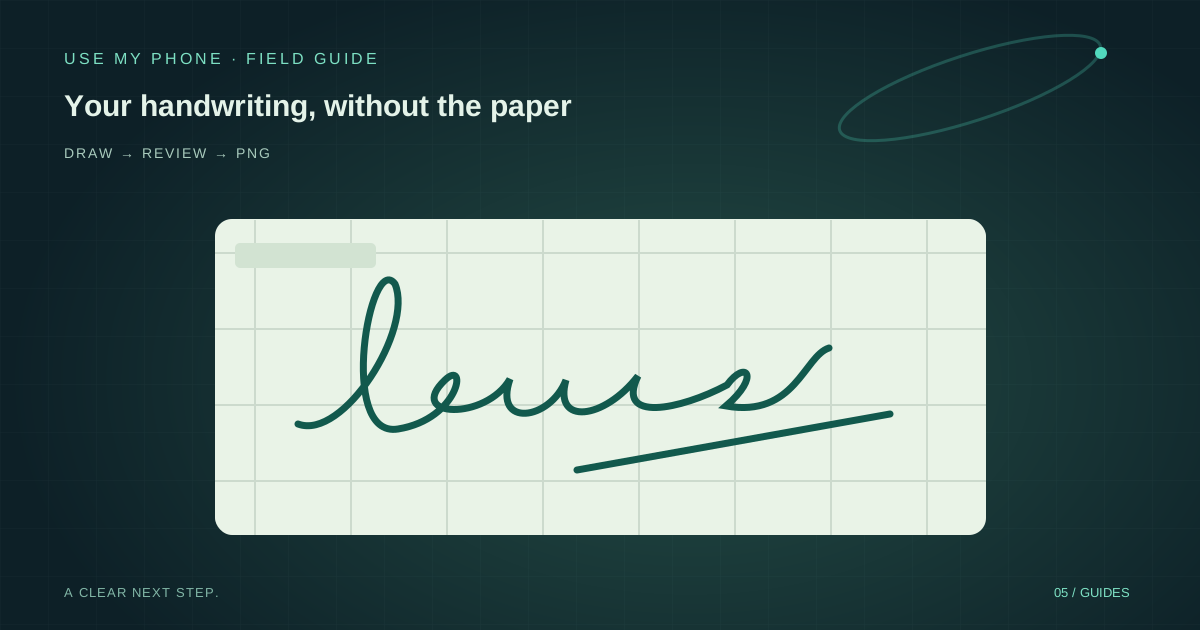
THE QUICK ANSWER
Here’s the short version.
Use My Phone Signature Pad lets you draw with a finger or compatible stylus on your phone and save the result on your computer as a trimmed PNG with a transparent background. A signature label is optional. This produces an image, not a recipient invitation, an audit certificate or a completed electronic-signature envelope.
LET’S DO THIS
Step-by-step setup
Open Signature Pad on the computer
Use the computer where you want to save the image. Open Signature Pad, scan the pairing QR with your phone and keep both browser pages open. Confirm that the phone has connected before drawing; a session that is still waiting cannot deliver your strokes.
Draw on the phone without a mandatory label
The phone becomes the signing surface when the tool opens. Use a finger or a compatible stylus. You do not need to enter a name or label to begin. A wider, comfortable drawing area helps you reproduce your usual signature without squeezing it into a corner.
Clear and retry before accepting
Watch the live strokes on the computer. If the signature is incomplete or uncomfortable, use Clear on the phone and draw again. Accept only after you have finished. An empty pad cannot be accepted: draw a visible signature rather than expecting a blank image.
Save the resulting PNG
The captured signature appears in the computer’s signature tray. Use Save to download the PNG. Copy is also available where the browser supports image clipboard operations. Check the downloaded image before closing the session; the tray is not a permanent online signature vault.
Why PNG rather than a photograph or JPEG?
PNG can preserve a transparent background, so the ink can sit over a white or coloured document without a rectangular paper photograph around it. This tool trims the image around the captured signature and exports a PNG rather than requiring you to photograph a signed sheet and remove its background.
An image viewer may show transparent pixels against white, black or a checkerboard. That display background does not necessarily mean the PNG has lost transparency. Keep the original PNG; converting it to JPEG removes the transparent background.
Place the image deliberately in your document
Use the image-insertion controls in the document application you already work with. Support and menu names vary by application: this tool supplies the image but does not automatically insert it into every document editor or PDF application.
Resize proportionally so the handwriting is not stretched. Check the final page at a normal reading size and ensure the image does not cover nearby text, dates or other signature lines. Save or export a copy, then reopen that final file to verify its appearance. Keep the original document separately if it is important to your workflow.
A signature image is different from a signing service
Signature Pad is appropriate when your immediate task is to capture handwriting as an image. It does not verify a signer’s identity, deliver email invitations, record agreement to a particular document or generate the evidence produced by a managed signing envelope.
Do not assume that inserting a reusable PNG gives every document the same status as a completed electronic-signature workflow. The sender remains responsible for checking the document’s requirements and using an appropriate execution process. Use My Phone Sign is a separate product; the pad does not silently create or send an envelope.
Privacy and troubleshooting
Treat a signature image as sensitive: someone with a copy may be able to reuse it. Use a trusted phone and computer, keep the pairing code private and store downloaded signatures only where you intend. A person signing on your phone should know what the image will be used for.
If strokes stop arriving, check connection status on both devices before accepting. Keep the phone page visible and reconnect if needed. If Copy is blocked by the browser, Save is the straightforward fallback. Download the accepted image before ending the session; for the next signer, the pad reopens automatically.
THE THINGS PEOPLE ASK
Common questions
Do I have to label my signature first?
No. A name or label is optional and should not stop you drawing or accepting a non-empty signature.
Can I save the signature without a background?
Yes. Signature Pad exports a trimmed PNG with transparency. Keep it as PNG instead of converting it to JPEG.
Does this tool sign and email my PDF?
No. It captures a signature image. Preparing PDFs, inviting recipients and collecting completion evidence belong to the separate Use My Phone Sign workflow.
YOUR NEXT MOVE
Put the guide to work.
Choose the tool for your next step. Review the result and save the copy you need.